How to Render in SFM: Export Settings for Clean Video
Quick answer: To render in Source Filmmaker, open your session, go to File > Export > Movie, pick a resolution and frame rate, choose image sequence (recommended) or a video file, turn on Use Progressive Refinement for quality, and click Export Movie. Then join the frames into an MP4 with a free editor or FFmpeg.
Some people search "SFM compile" when they mean rendering. If you need to build models instead, see our SFM compile guide.
Before you render
- Set the render range. In the Clip Editor, make sure the shot or the whole sequence you want is included. SFM renders the session’s time range.
- Check the camera. Each shot renders from its own scene camera, not the work camera you move around with.
- Save your session. Long renders can crash, especially on older GPUs.
- Do a test. Render 10 frames first to check lighting, motion blur and time per frame.
Step-by-step: export a movie
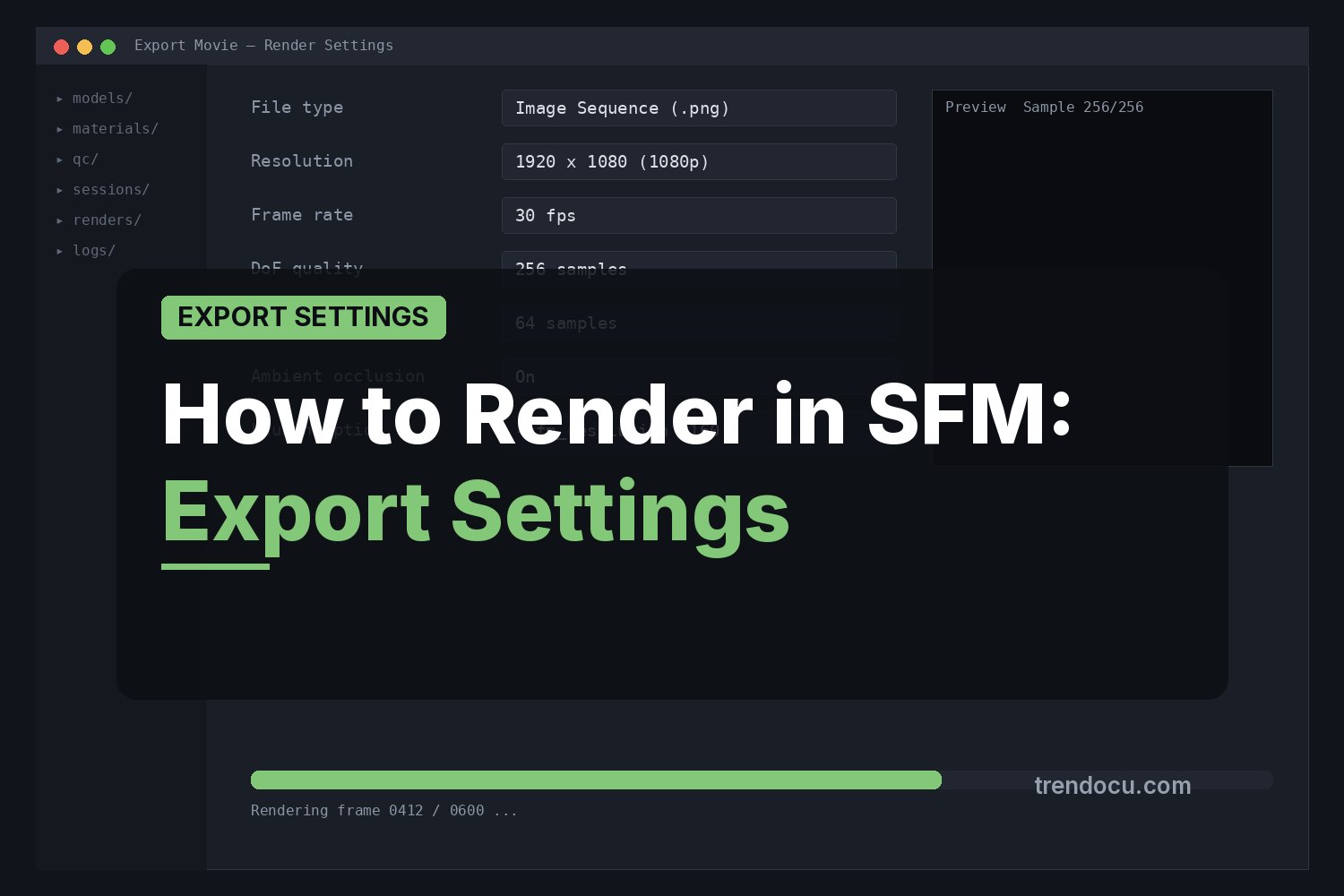
- Open File > Export > Movie…
- Choose an output folder and file name. Use a new, empty folder for each render.
- Pick the file type: image sequence (TGA) or a movie file.
- Set resolution (for example 1920 x 1080) and frame rate (24 or 30 fps for most videos; 60 for smooth motion).
- Under Render Settings, enable Use Progressive Refinement and choose sample settings (see below).
- Choose the range: current shot or whole session.
- Click Export Movie and wait. Do not use the PC for heavy tasks while it runs.
Image sequence vs video file
| Image sequence (TGA) | Movie file | |
|---|---|---|
| Quality | Lossless frames | Compressed by the old built-in encoder |
| Crash safety | Keeps all finished frames | A crash can lose the file |
| Disk space | Large | Smaller |
| Extra step | Join frames in an editor | Ready to play |
| Best for | Final renders and YouTube uploads | Quick previews |
For anything you plan to publish, use an image sequence. SFM’s built-in movie options are old and often give lower quality. Valve’s own exporting a movie page explains the export dialog.
Best render settings for quality
SFM’s quality comes from progressive refinement, which renders each frame many times and blends the results. This gives smooth motion blur, depth of field and soft shadows.
- Motion blur quality: higher values give smoother blur but slow the render.
- Depth of field quality: only matters if your camera uses depth of field.
- Ambient occlusion: adds soft contact shadows; turn it up for final renders.
- Anti-aliasing: progressive refinement already smooths edges, so the main setting is the sample count.
A practical approach: use low settings for test renders, then raise motion blur and depth of field quality for the final render. Check one frame at full size before running the full shot.
Rendering in 1080p or 4K
You can type a custom resolution in the export dialog. 1920 x 1080 is safe on almost any PC. Higher resolutions like 3840 x 2160 are possible but use much more video memory and can crash older GPUs. If 4K crashes, render at 1440p and upscale, or render in parts.
Joining frames into an MP4
After an image sequence export you will have files like shot_0000.tga, shot_0001.tga and so on. Join them with any video editor that supports image sequences (DaVinci Resolve, Blender’s Video Sequencer or Shotcut) or with FFmpeg:
ffmpeg -framerate 30 -i shot_%04d.tga -c:v libx264 -crf 18 -pix_fmt yuv420p output.mp4Change -framerate to match your SFM export and the %04d part to match the number of digits in your file names. Add audio in the editor, or export the sound from SFM separately.
Lighting tips for cleaner renders
Good lighting does more for quality than any render setting. A few simple habits help:
- Use fewer, stronger lights. Every shadow-casting light adds render time and can add noise. Three well-placed lights (key, fill and rim) are enough for most shots.
- Turn off shadows on fill lights. Fill lights rarely need their own shadows, and turning them off speeds up rendering.
- Raise shadow map quality on the key light only. Higher shadow resolution on the main light gives sharp, clean shadows where they matter.
- Use volumetric lights carefully. Fog and light shafts look great but are slow and can flicker at low sample counts.
- Check exposure. Very dark scenes show more noise. Brighten slightly and adjust in your video editor if needed.
Recommended settings by use
| Use | Resolution | Frame rate | Refinement |
|---|---|---|---|
| Quick test | 1280 x 720 | 24 or 30 | Off or low |
| YouTube video | 1920 x 1080 | 30 or 60 | Medium to high |
| Short for vertical video | 1080 x 1920 | 30 | Medium to high |
| Poster or wallpaper | 3840 x 2160 or higher | – | High |
These are starting points. Raise or lower them based on your test render time.
Fixing common render problems
| Problem | Fix |
|---|---|
| Grainy or noisy image | Raise progressive refinement samples; add or brighten lights; reduce very small shadow-casting lights |
| SFM crashes during render | Lower resolution, close other programs, render one shot at a time, use image sequence |
| Black frames | Check the shot uses the right scene camera and that lights are on |
| Wrong part of the timeline exported | Check the render range and shot boundaries in the Clip Editor |
| Pink and black textures in render | Missing materials; see SFM compile errors and fixes |
| Render takes too long | Lower motion blur and DOF quality for tests; render overnight for finals |
How long does an SFM render take?
It depends on your GPU, resolution, number of lights and refinement settings. To estimate, render 10 frames at your final settings, note the time, and multiply by the total number of frames divided by 10. A 30-second clip at 30 fps is 900 frames.
Rendering a still image (poster)
For a single image, use File > Export > Poster…. You can set a much higher resolution than for movies and use high sample settings, since only one frame is rendered.
Still need models for your scene? Read how to import models into Source Filmmaker.
FAQ
What is the best format to export from SFM?
An image sequence (TGA). It is lossless and safe against crashes. Join the frames into an MP4 afterwards.
Why is my SFM render grainy?
Usually low progressive refinement samples or dim lighting with many shadow-casting lights. Raise samples and improve your light setup.
Can SFM export MP4 directly?
SFM has built-in movie export, but its encoder is old. Most creators export frames and encode MP4 with FFmpeg or an editor.
Does SFM use my GPU for rendering?
Yes. SFM renders with your graphics card, so a faster GPU with more video memory renders faster and handles higher resolutions. Update your graphics driver if renders crash.
How do I render only one shot?
In the export dialog, set the range to the current shot instead of the whole session, or move the playhead into the shot you want first.