How to Make Your Chromebook Touchscreen (Enable It or Add It)
If you typed this into Google, odds are you already own a touchscreen Chromebook. Somewhere along the way, the screen got switched off, and now it just sits there ignoring every tap.
So, this guide handles both: getting a Chromebook’s touchscreen working again when the hardware is already built in, and figuring out your real options if the thing never had a touch panel to begin with. Give it a minute, and you’ll know which camp you’re in.
Does Your Chromebook Actually Have Touchscreen Hardware?
Press two fingers on the screen. If you feel the cursor jump or catch a faint ripple under your fingertip, that’s touch hardware responding, and the fix below is almost always a toggle that got switched off somewhere in Settings.
If nothing happens at all, and the model number doesn’t list “touch” or “2-in-1” on the spec sheet, the Chromebook was built without a digitizer in the first place. No setting can add one.
That check takes about two seconds, and it tells you which half of this guide actually applies to you.
How to Turn On the Touchscreen on a Chromebook That Has It
Convertible and 2-in-1 Chromebooks from Acer, Lenovo, HP, and ASUS ship with touch turned on out of the box. So when the screen suddenly stops responding, it’s rarely a hardware failure. Three fixes cover nearly every case.
Solution 1:
Start with the keyboard shortcut:
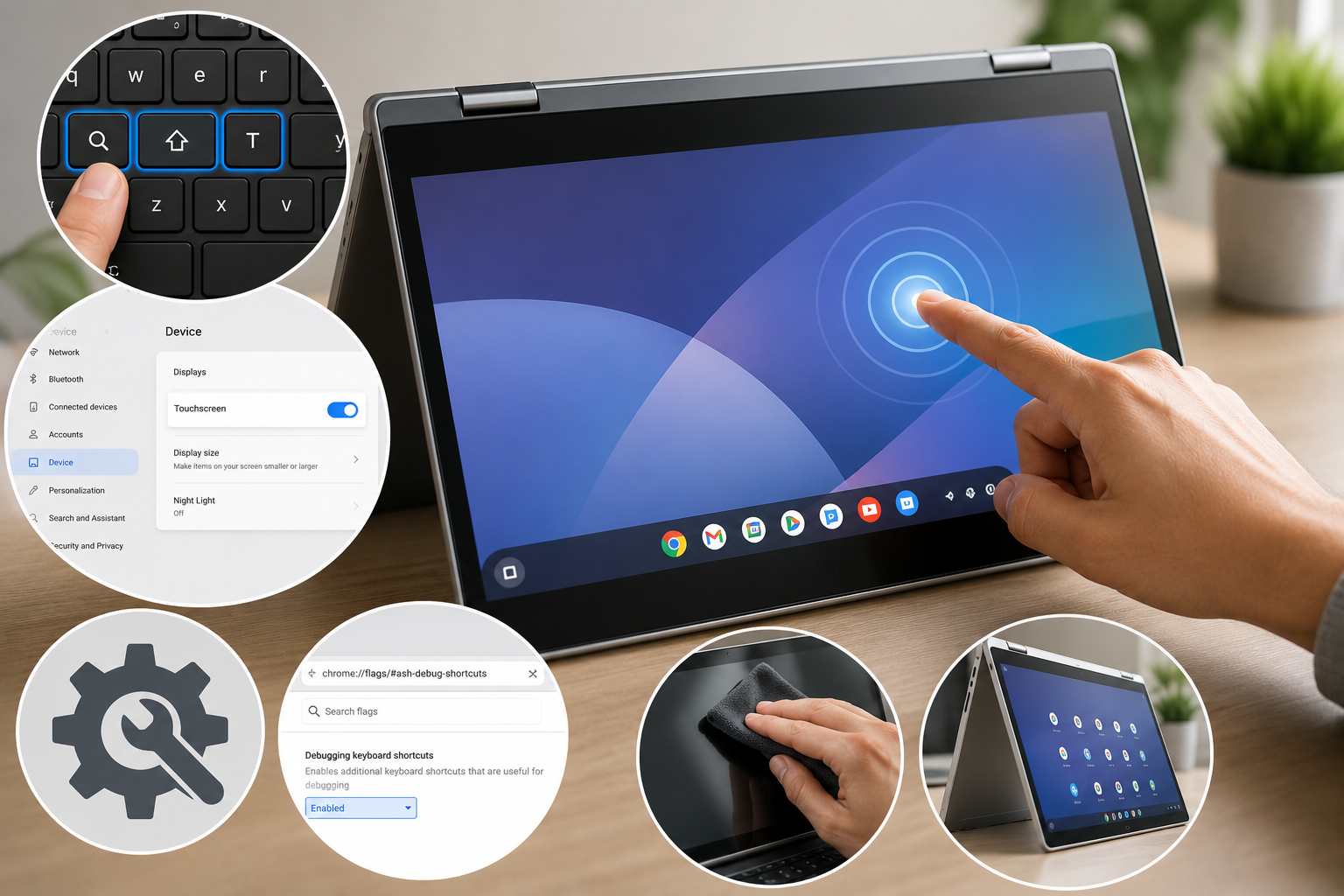
Search, Shift, and T, pressed together.
The Search key sits where Caps Lock would be on a regular keyboard, and this combination toggles touch input on and off. If someone bumped it by accident, pressing it again brings the screen right back to life.
If that doesn’t do anything, check the settings toggle.
Solution 2:
Open Settings, then Device, then Displays, and look for a Touchscreen section on the right side of the panel.
A switch showing Off just needs one click. It turns blue, and the change takes effect immediately, with no restart involved.
Still nothing?
Solution 3
Try the Chrome flag.
Type chrome://flags/#ash-debug-shortcuts into the address bar, set Debugging keyboard shortcuts to Enabled, and restart when the dialogue box appears.
After that, Search, Shift, and T should behave the way they’re supposed to.
Most people never need to go past these three steps.
Chromebook Touchscreen Still Not Working? Troubleshoot the Rest
When the toggle is already on and the shortcut isn’t doing anything, work through the rest one variable at a time, testing the screen after each change.
Start by wiping the panel down. Screen protectors, dust, and finger oil block the digitizer more often than most owners assume, so a dry microfiber cloth before touching any settings is worth trying first.
Then update Chrome OS.
Go to Settings, then About Chrome OS, then Check for updates.
A toggle that stays grayed out will often clear up once the operating system is current, since Chrome OS ties its touch drivers to specific build numbers.
Test in Guest Mode next.
Sign out and log back in as a guest. If touch works there but not on your main profile, that points to a corrupted user setting, and a fresh profile (or removing the account entirely) usually resolves it.
For a hardware reset, hold Refresh and Power for about ten seconds. After that, unpress both, and let the Chromebook restart on its own.
Powerwash comes last, and only as a last resort. It wipes local data and resets every setting back to factory defaults,
So back up anything stored outside Google Drive first before doing that. Downloaded files and Linux app data get erased permanently in the process.
Finally, look for physical damage.
A hairline crack across the glass can sever the digitizer grid underneath even when the display still looks fine on the surface. Cracking near a corner, paired with a touch that stopped responding right after a drop, points almost always to that as the cause, and no software step will bring it back from there.
If none of this fixes it and the Chromebook was never dropped, contact the manufacturer. A warranty repair beats guessing at replacement parts every time. Google’s own Chromebook help documentation actually backs this same sequence: clean the screen, reset the hardware, then factory reset only once nothing else has worked. Once hardware damage is ruled out, the last question is whether the device ever had a digitizer at all, and that’s exactly where most retrofit searches go wrong.
Can you add a touchscreen to a Chromebook That Was Never Built With One?
If you own a Chromebook with no digitizer at all, then the honest answer is no, not reliably.
Windows laptop owners briefly had an external option called AirBar, a USB sensor bar from the Swedish company Neonode that projected an invisible light grid over a non-touch screen to detect finger position. Neonode’s own support documentation confirms the company ended AirBar development, production, sale, and support back in 2020.
The product was built exclusively for Windows 10 laptops, in 13.3, 14, and 15.6-inch sizes, and it was never compatible with Chrome OS. Nothing has replaced it for any platform since.
External touch overlays, infrared frames, and light-field sensors made for other laptops won’t pair with Chrome OS drivers either, since Chrome OS has no supported path for third-party touch input hardware at all. A Chromebook that shipped without a digitizer stays that way permanently. That’s a hardware fact, not a settings problem, so any listing claiming otherwise is selling a Windows-only product to the wrong audience. It doesn’t mean you’re stuck without touch altogether, though, just that the real fix looks different from what most guides promise.
Real Alternatives If You Need Touch on a Non-Touch Chromebook
A handful of options genuinely work here, even though none of them turn your existing screen into an actual touch panel.
One is pairing a stylus-enabled Android tablet or a touchscreen phone as a secondary input device for quick sketching or annotation, then moving the finished work back to the Chromebook through Google Drive.
Another is an external touchscreen monitor connected over USB-C or HDMI, which works well if your day-to-day genuinely needs touch input at a desk. Several budget touch monitors function fine as a second display for any laptop, Chromebooks included.
Or just shop for a touch or 2-in-1 model the next time you’re buying. Manufacturers list touch support directly on the spec sheet, so checking before you buy avoids this whole situation later.
Frequently Asked Questions
Why did my Chromebook touchscreen suddenly stop working?
Usually, it comes down to the Search, Shift, T shortcut getting triggered by accident. After ruling that out, check for a toggle switched off in Settings, then a pending Chrome OS update.
Does Search plus Shift plus T work on every Chromebook?
Only on models where the debugging shortcut is enabled by default. If it does nothing, turn it on manually through chrome://flags/#ash-debug-shortcuts first.
Will a power wash fix a broken touchscreen?
It clears up software-level issues like corrupted drivers or a stuck setting, but it can’t repair a cracked digitizer or an actual hardware fault.
Can I buy a sensor bar to add touch to my Chromebook?
Not one that works reliably. The closest thing, AirBar, was Windows-only to begin with, and it’s been discontinued since 2020.
Do all 2-in-1 Chromebooks have touchscreens?
Yes. The 2-in-1 and convertible form factor requires a touch panel by design, since the hinge itself is built for tablet mode.
Is a Chromebook touchscreen worth it if mine didn’t come with one?
Depends on how you actually use the device. If you lean on tablet mode or drawing apps often, it’s worth considering. For typing and browsing, a good trackpad covers most daily use without the added cost.