
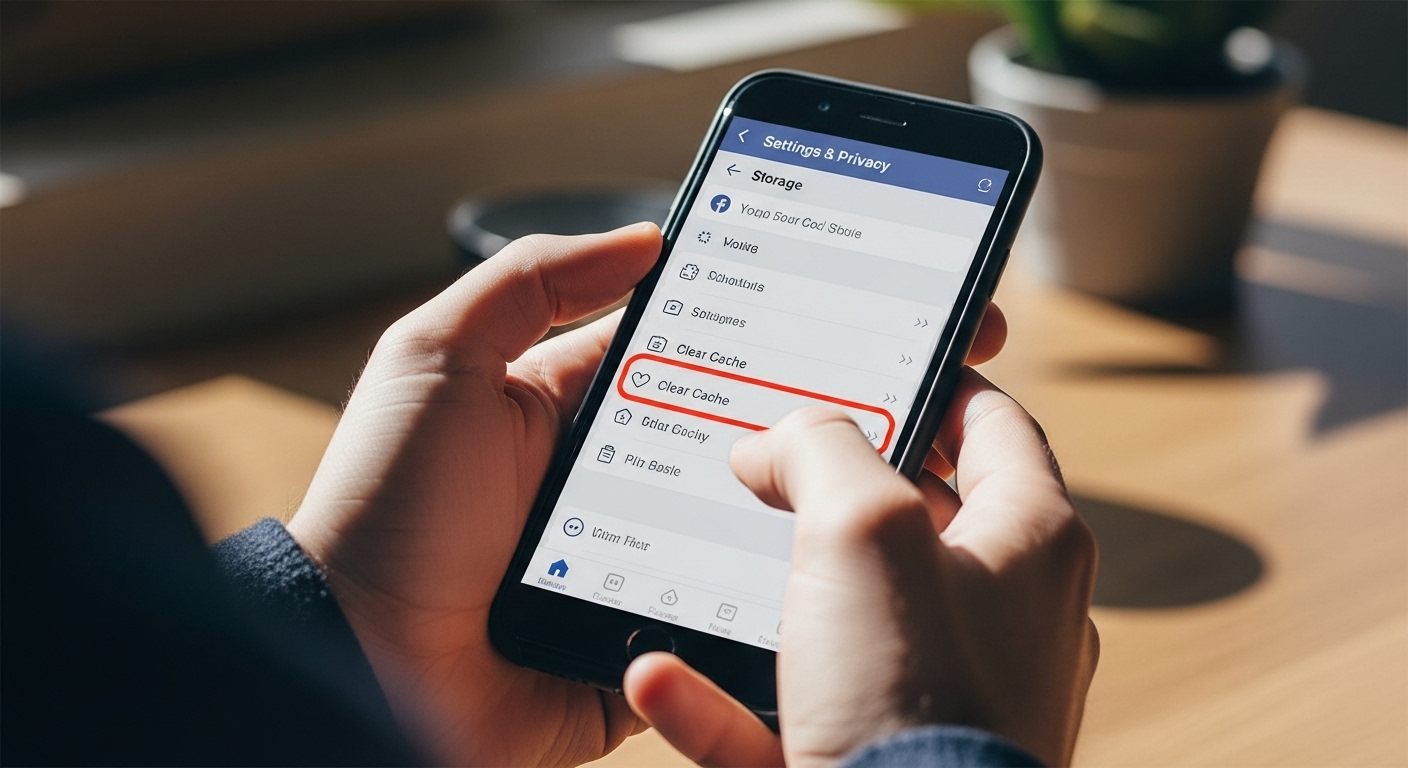
How Do You Clear Facebook Cache | Complete Guide
If your Facebook app is acting slow, crashing, or showing outdated content, clearing its cache can be a quick and effective fix. Cache files are temporary data stored by apps and browsers to help them load faster, but over time, they can become cluttered or corrupted.
In this detailed guide, you’ll learn how to clear Facebook cache on Android, iPhone, and desktop browsers, along with why it matters and how often you should do it.
What Is Facebook Cache?
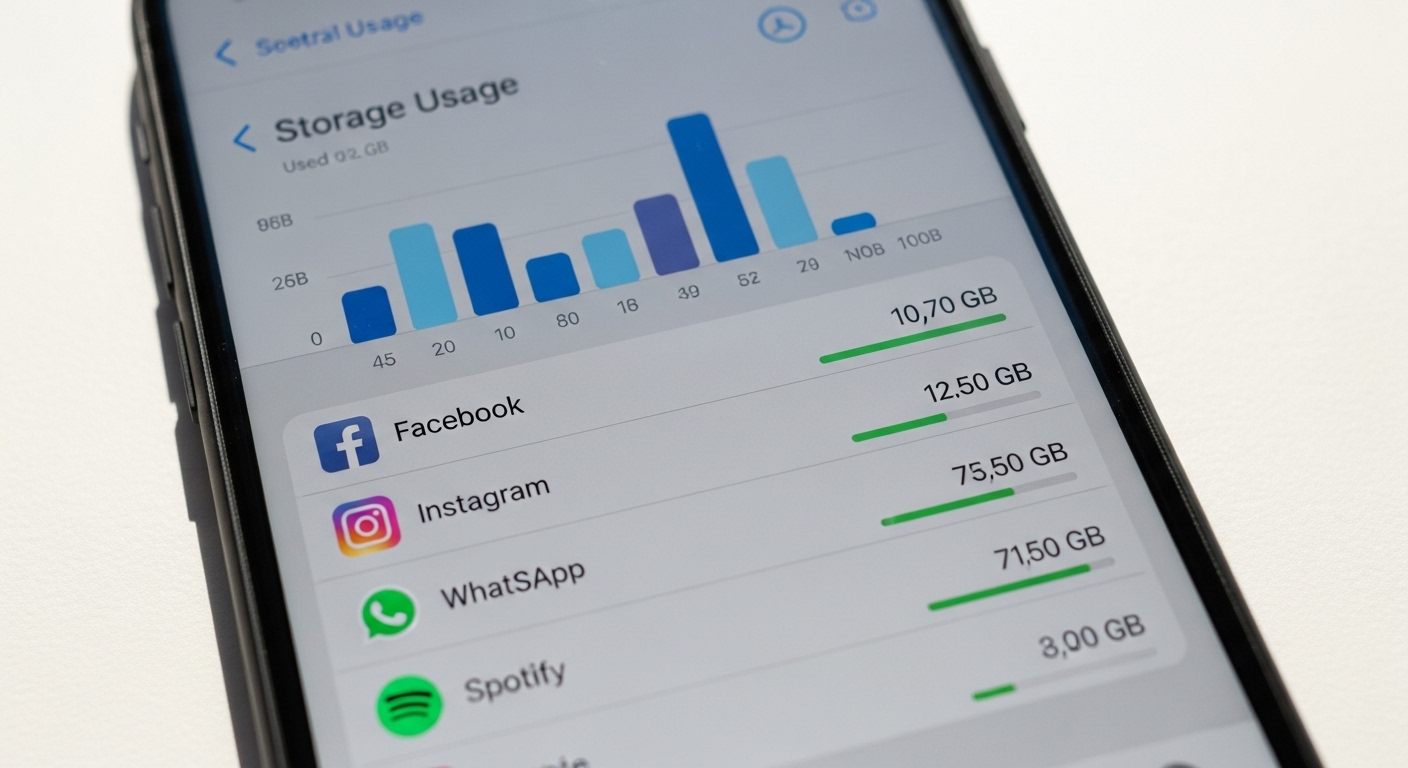
Cache is temporary data stored by the Facebook app or your browser. It includes:
- Images and videos you’ve viewed
- Profile data and settings
- Browsing history within the app
This helps Facebook load faster, but too much cached data can:
- Slow down your device
- Cause app glitches or crashes
- Show outdated content
Why You Should Clear Facebook Cache
Clearing the cache is safe and doesn’t delete your account or important data. Here’s why you should do it:
1. Improve Performance
An overloaded cache can slow down your app. Clearing it refreshes everything.
2. Fix App Errors
If Facebook keeps crashing or freezing, the cache might be the issue.
3. Free Up Storage
Cache files can take up significant space on your phone.
4. Resolve Loading Issues
Clearing the cache can fix problems like images or videos not loading properly.
Does Facebook Cache Clean-up Impact Your Privacy?
When you clear the Facebook app cache, it mostly deletes temporary files saved on your device, not sensitive personal data. This implies that your login details, messages, photographs, and account are (safely) stored on Facebook servers. But clearing the cache can indirectly enhance your privacy under some circumstances. As an example, it eliminates the saved browsing history of loaded pictures, search results, or even a session history that can demonstrate what you have been doing to another person who might be using the same computer.
Also, in case you log in regularly on shared or public computers, clearing the cache is also useful so that any trace of your activity is reduced. Although that does not offer a full solution to privacy, as cookies and saved passwords might still be present depending on your settings, it is still a good step towards better digital hygiene. Summed up, emptying the cache will not do any harm to your account, but can help to ensure a purer, safer experience with the app.
How to Clear Facebook Cache on Android?
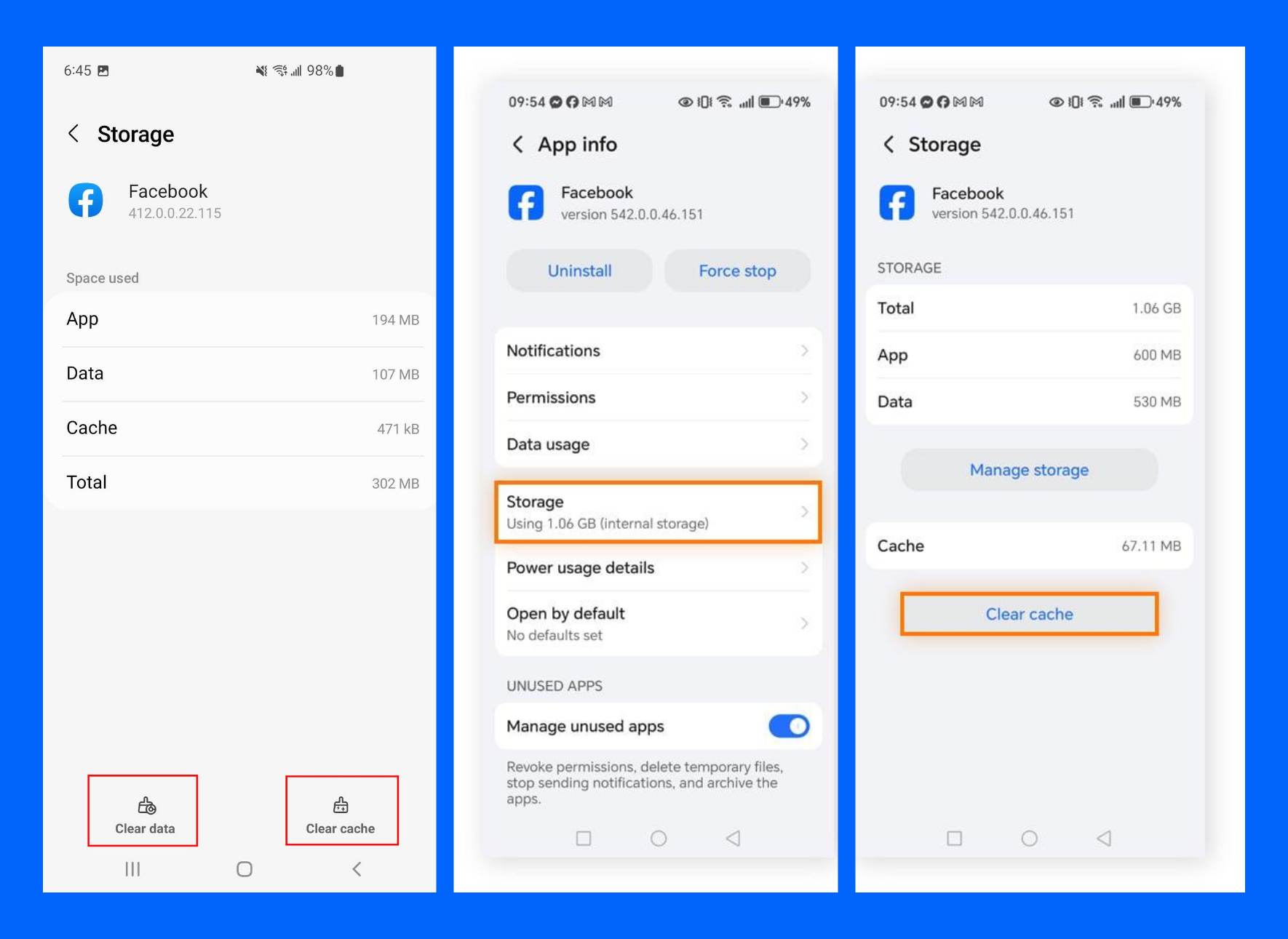
Android makes it easy to clear app cache without uninstalling the app.
Steps:
- Open Settings on your phone
- Go to Apps or Apps & Notifications
- Find and tap Facebook
- Tap Storage
- Click Clear Cache
How to Clear Facebook Cache on iPhone?
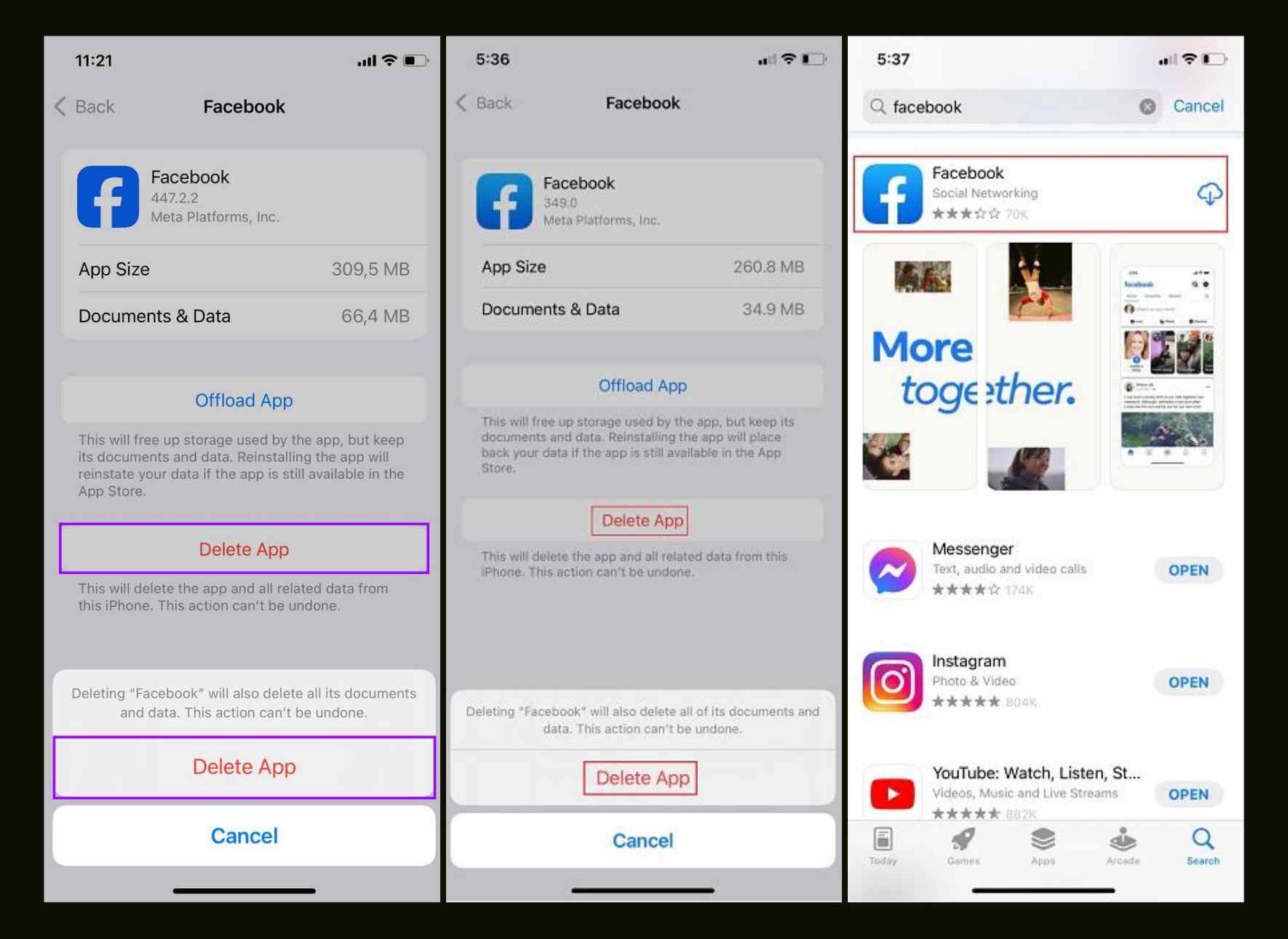
Unlike Android, iPhones don’t allow direct cache clearing for individual apps. But there’s a workaround.
Method 1: Offload the App
- Go to Settings
- Tap General → iPhone Storage
- Find Facebook
- Tap Offload App
- Reinstall the app
Method 2: Reinstall Facebook
- Press and hold the Facebook app
- Tap Remove App
- Reinstall it from the App Store
This clears all cached data.
How to Clear Facebook Cache on Web Browsers?
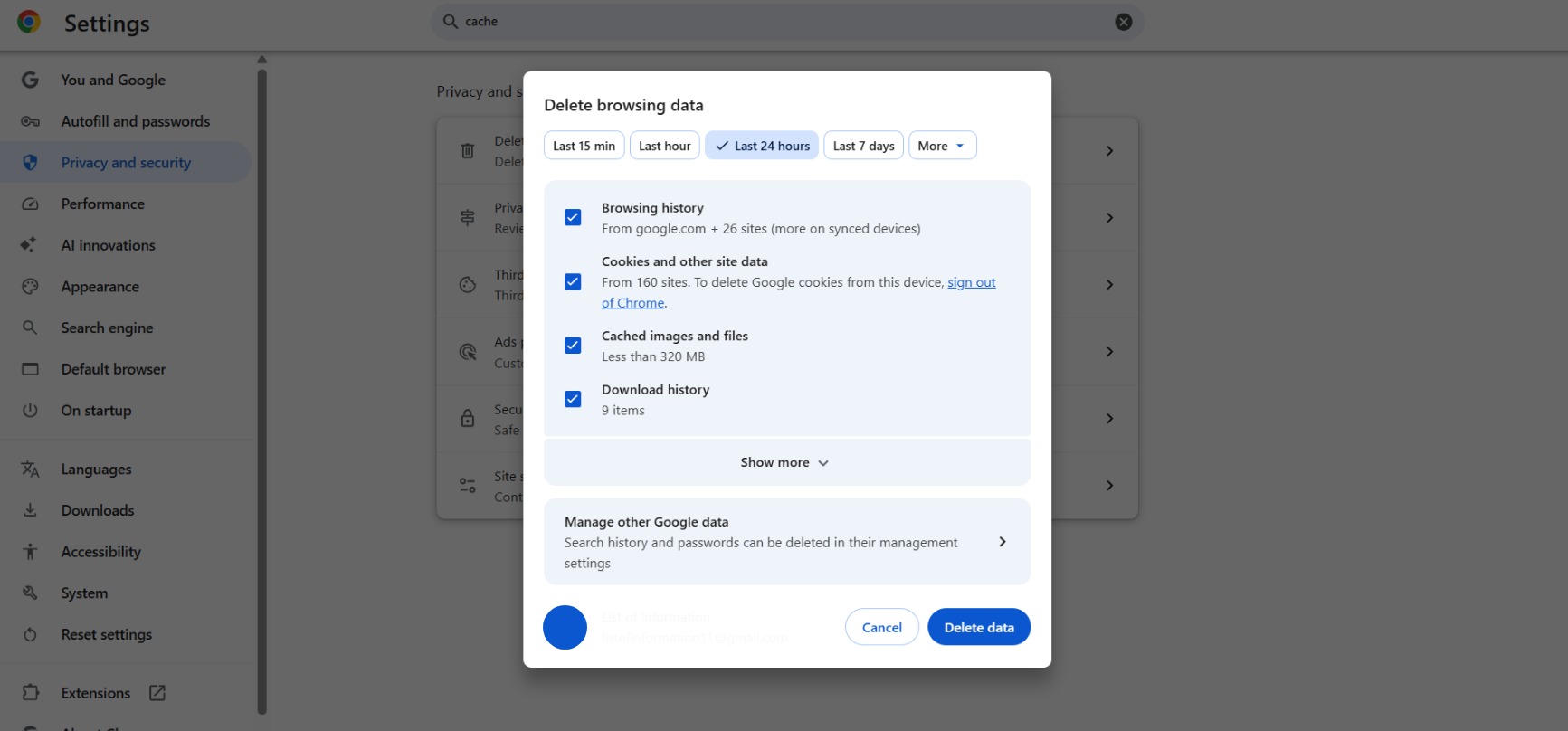
If you use Facebook on Chrome, Edge, or Safari, you need to clear your browser cache.
On Google Chrome:
- Click the three dots (top right)
- Go to Settings → Privacy and Security
- Click Clear Browsing Data
- Select: Cached images and files, Cookies (optional)
- Click Clear Data
On Safari:
- Open Settings (on iPhone)
- Scroll to Safari
- Tap Clear History and Website Data
How Often Should You Clear Facebook Cache?
There’s no strict rule, but here’s a general guideline:
- Once every 2–4 weeks for regular users
- Immediately, if you notice issues like lag or crashes
- More frequently, if you have limited storage
What happens after clearing the cache?
After clearing the cache:
- The app may load slightly slower at first
- You might need to log in again (if data is cleared)
- Performance usually improves
- Bugs and glitches are often fixed
Tips to Keep Facebook Running Smoothly
- Keep the app updated
- Restart your phone regularly
- Avoid running too many apps in the background
- Use Facebook Lite if your device is low-end
Common Issues After Clearing Cache (and Fixes)
- App Not Opening
- Restart your phone or reinstall the app
- Login Issues
- Reset your password if needed
- Slow Loading Initially
- This is normal; the cache will rebuild
Conclusion
Clearing Facebook cache is a simple yet powerful way to improve performance, fix bugs, and free up storage. Whether you’re using Android, iPhone, or a browser, the process is quick and safe.
If your Facebook app is acting up, don’t panic—just clear the cache and give it a fresh start.
Frequently Asked Questions (FAQs)
1. Does clearing Facebook cache delete my messages?
No, your messages and account data remain safe.
2. Will I be logged out after clearing the cache?
Only if you clear data or reinstall the app, not when clearing cache alone (on Android).
3. Is it safe to clear the cache regularly?
Yes, it’s completely safe and even recommended.